

You check your inbox on a Monday morning and see a Google Cloud invoice for $82,000. Your usual monthly bill is $180. A developer forgot to turn off a testing server, or an outsider gained access to your API key. You are now responsible for paying that entire amount.
This exact situation happened to a Mexico-based company. This was about a 46,000% increase.
Google Cloud budget alerts act as your early warning system. They send an immediate notification when your spending crosses a specific limit.
You must know one critical fact right away: budget alerts only notify you. They do not automatically shut down your services.
This blog shows you exactly how to implement a GCP billing alert setup. You will learn how to configure your account, set strict limits, and build an automated system to stop charges before they threaten your business.
Key Takeaways:
Before you set a Google Cloud billing limit, you need to understand how Google organizes your resources. Tracking your Google Cloud usage becomes much easier when you know this structure. Google Cloud uses a specific hierarchy. If you understand this structure, you know exactly where your money goes.
Google Cloud groups everything into four levels:
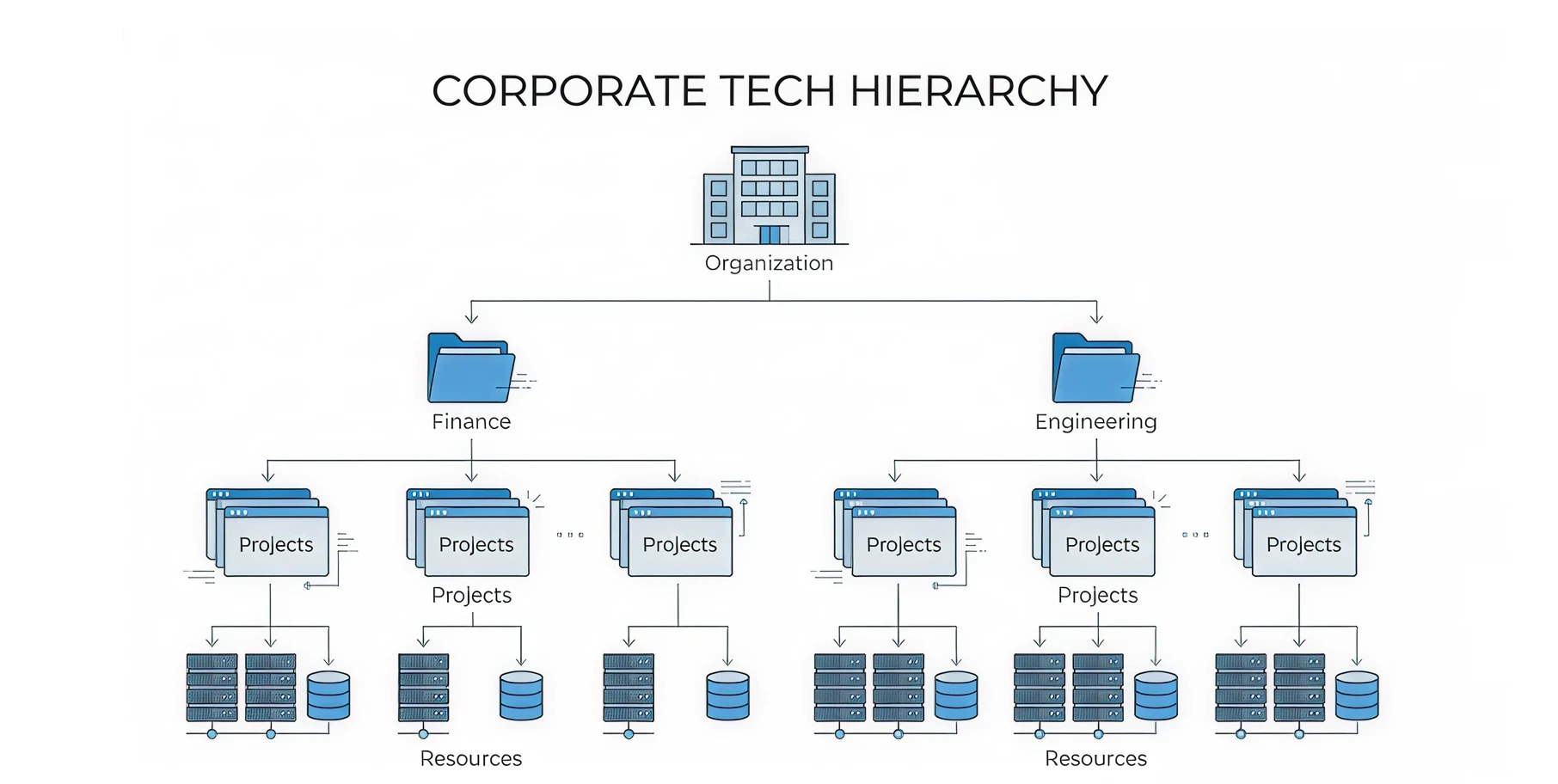
When you look at a cloud bill without this structure, you only see a massive list of server costs. You cannot tell if the marketing team or the software team spent the money.
By grouping your resources into Projects and Folders, you gain immediate control, a fundamental requirement for any professional GCP cost management strategy.. You can set a budget for the "Testing" folder. If the testing team spends too much, you receive an alert specifically for them. This practice is a basic requirement for any Google Cloud cost management guide.
You cannot create a budget alert simply by having a Google Cloud account. You need specific administrative permissions.
To create or modify a budget, your user profile must hold one of two specific roles:
If you do not have these permissions, the budget options will appear hidden or locked in your dashboard. You must ask your current account owner to grant you this exact access. You also need an active Google Cloud project linked to a valid billing account.
Setting up a budget takes less than five minutes. This process gives you immediate financial visibility so you can stop worrying about hidden charges.
Log in to your Google Cloud Console. Open the main navigation menu on the left side of the screen. This is where you will find the Google Cloud console billing section to manage all your spending controls.
Click on Billing. If you manage multiple businesses, the system will ask you to select the specific billing account you want to protect.
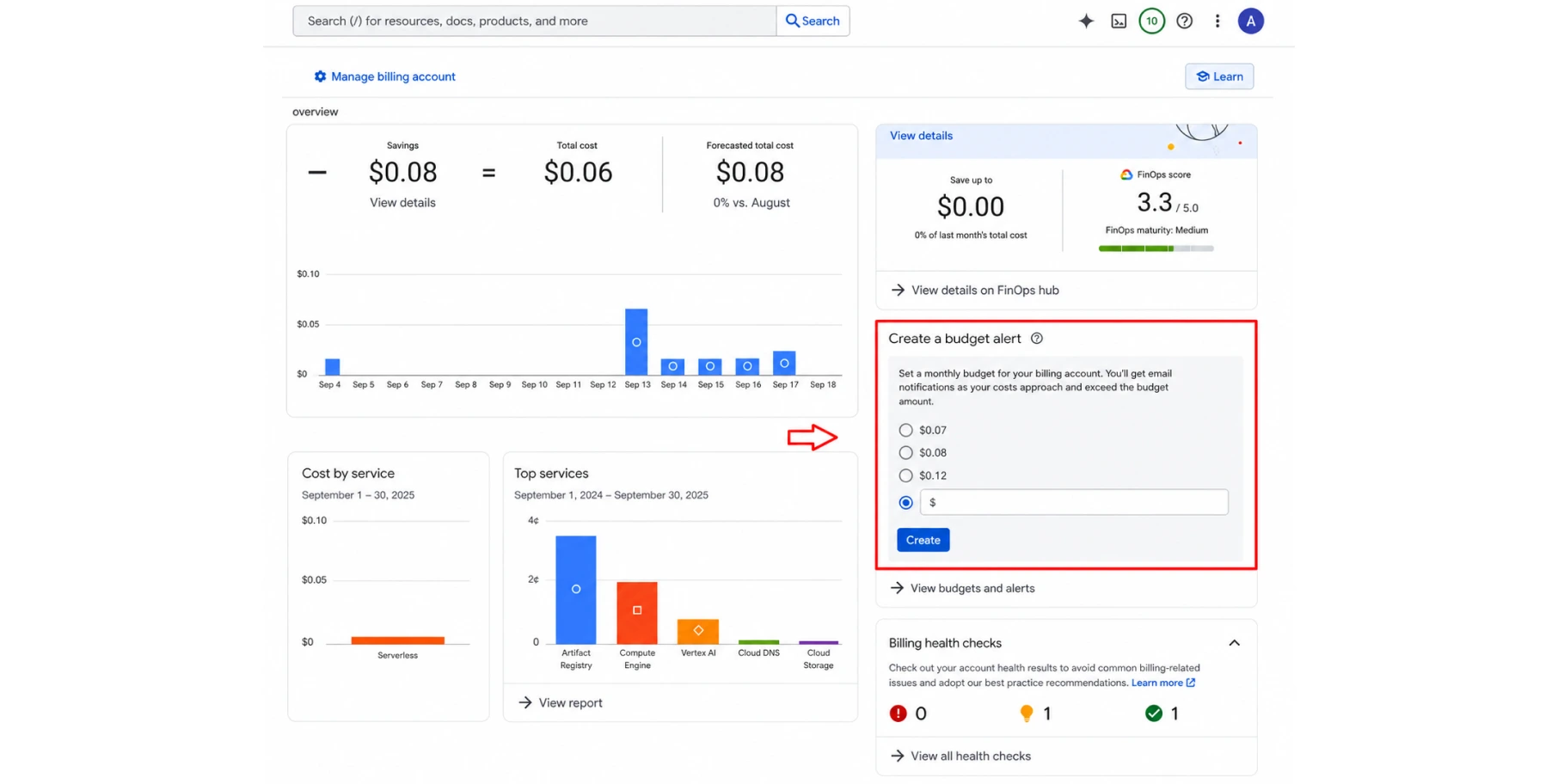
From the left-hand menu, select Budgets & alerts, and then click the blue button labeled Create Budget
You must decide exactly what spending you want to track. Narrowing your focus helps you hold specific teams accountable, especially when implementing complex GKE cost optimization across different clusters.
Real-World Example: If you run an e-commerce platform similar to Shopify, you do not want your customer-facing website costs mixed with your internal data storage costs. By creating one budget specifically scoped to your "Website Project" and another scoped to your "Data Storage Service," you know exactly which department is spending the money.
Next, you choose how Google calculates your spending limit.
Threshold rules determine exactly when the system sends you a warning email. By default, Google sets three automatic triggers: 50%, 90%, and 100% of your budget amount. Setting up Google Cloud billing budgets with multiple thresholds gives you layered visibility so you can respond before costs get out of hand.
You must choose between two types of triggers:
FinOps Expert’s Advice: You should always use forecasted alerts and set early thresholds. You should turn on anomaly alerts and budgets. Make sure to set early alerts (e.g., 50%) to diagnose cost spikes before they grow.
Forecasted spend provides a crucial head start. Google Cloud billing budgets with forecasted thresholds allow you to catch a developer mistake or a traffic spike days before the actual invoice reaches your credit card limit.
By default, Google Cloud billing budgets email alerts go to the Billing Account Administrators and Billing Account Users.
This default setting is often a mistake. The finance director might receive the email, but the finance director cannot turn off a broken server.
You need to route these alerts directly to the engineers who can fix the problem.
You achieve this using Cloud Monitoring notification channels. Within the budget setup screen, you can connect your alert to specific channels.
You can configure Google Cloud to send a direct message to a Slack channel, trigger a PagerDuty alarm, or send a payload to a custom webhook. This ensures the technical team sees the alert instantly.
Google Cloud budget alerts do not operate in real time. When you configure an alert for a specific limit, the system does not notify you the exact second your spending reaches that number.
There is a natural delay between when a cloud resource is consumed and when the billing system records that usage. While cost data is typically available within a day, it can sometimes take more than 24 hours to fully update.
Because alerts rely on this delayed billing data, they fire only after the charges have already accrued. As one engineer noted during a recent billing incident, "GCP budget alerts are based on billing data, which is delayed by several hours. By the time the alert fires, the damage is already done."
Because budget alerts only send emails, you must build automation if you want to stop the spending. You must automate Google Cloud budget alerts to trigger a "kill switch."
You build this using programmatic budget notifications GCP. Here is how the system works.
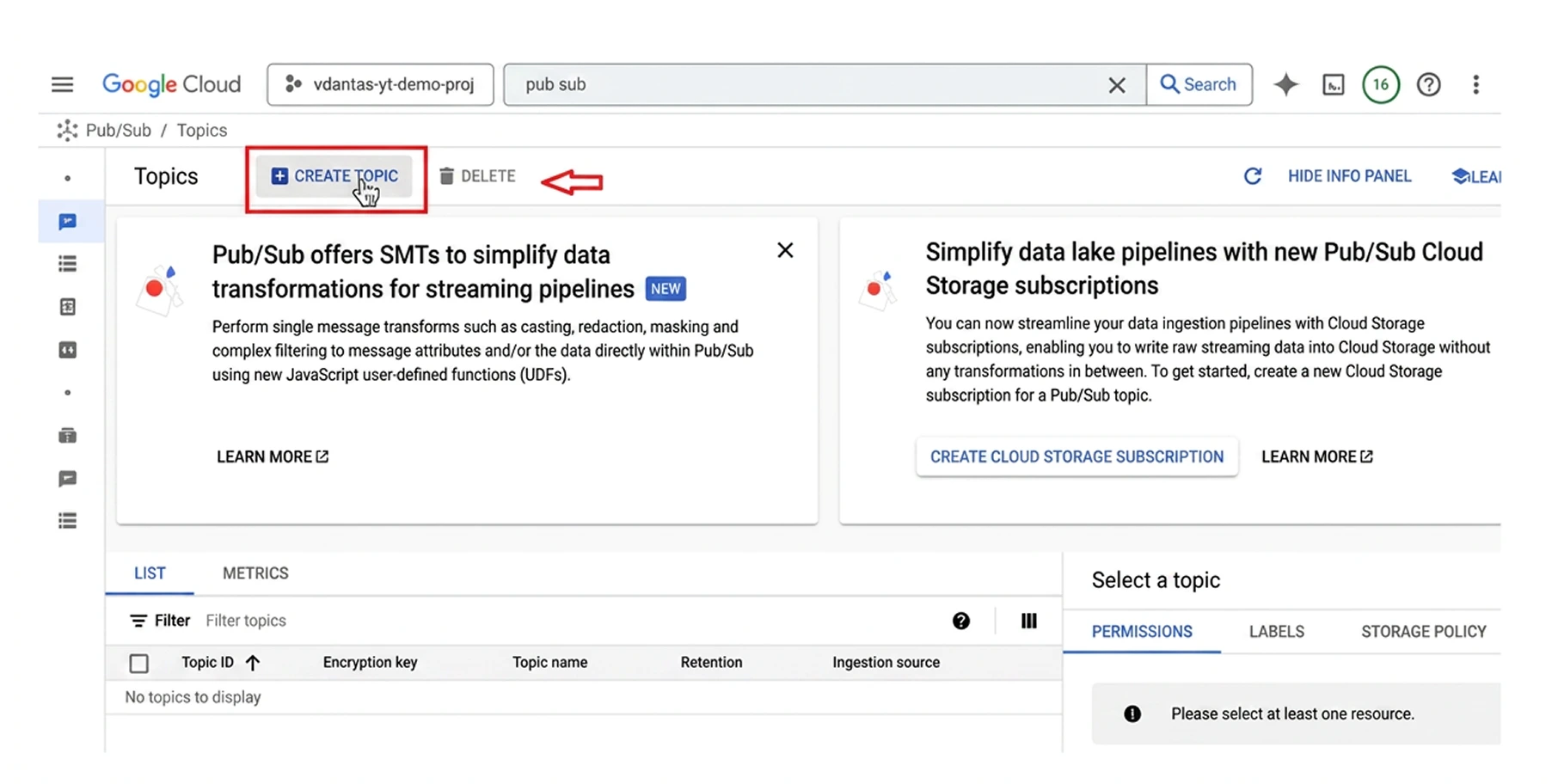
When you unlink a billing account, Google Cloud immediately shuts down all services on that project. Your websites go offline, and your databases become inaccessible. This is a severe action. You should only use a total kill switch on testing environments, student projects, or workloads where going offline is highly preferable to paying a massive bill.
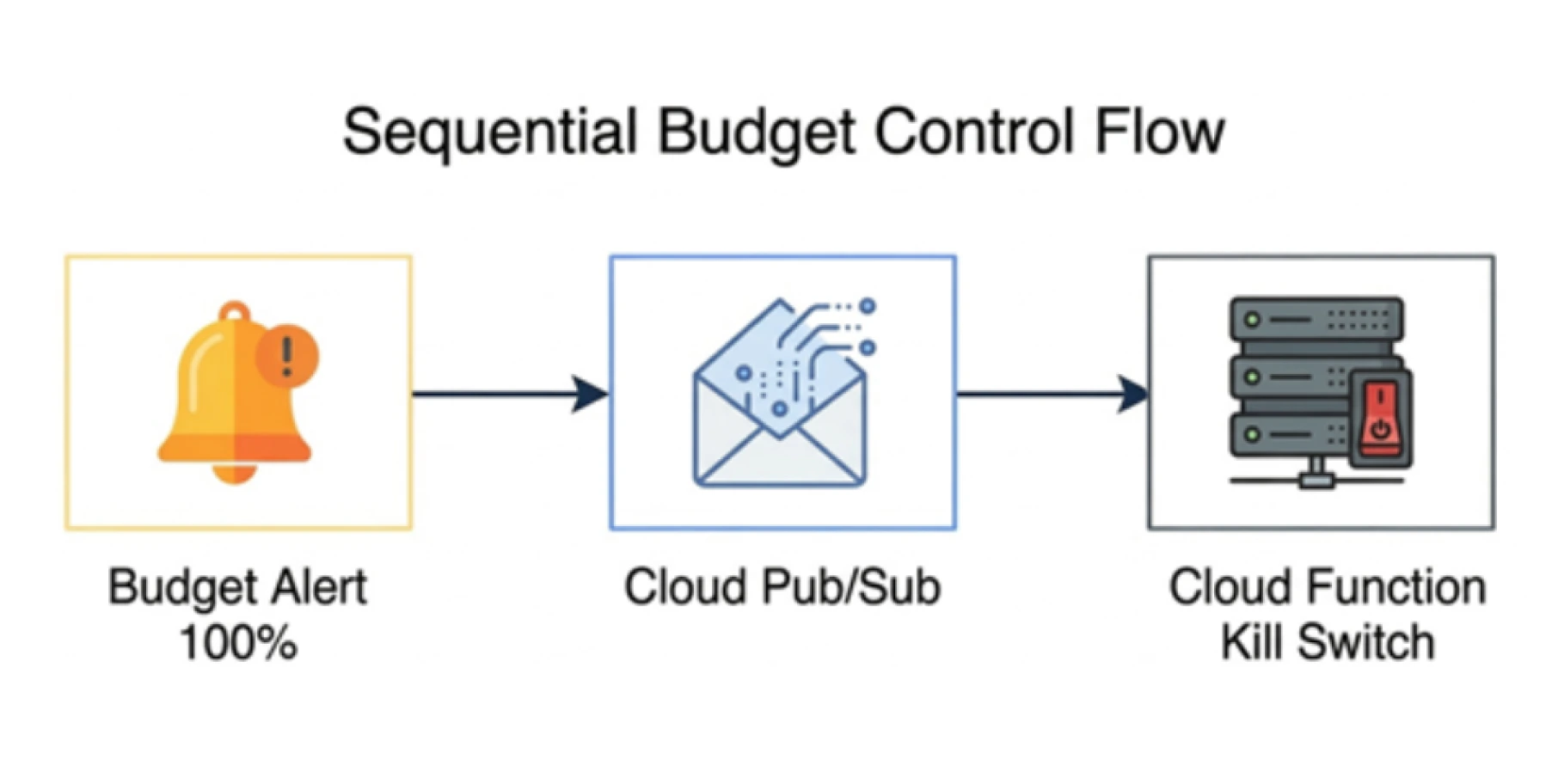
For production environments, your Cloud Function can be programmed to perform a softer action. The script can limit API quotas, scale down virtual machines to a minimum level, or disable specific expensive features while keeping the main application online.
Also Read: How to Save 91% with GCP Spot VMs
You are a business owner or technical leader who wants predictable costs. Right now, you face a serious problem: cloud bills are unpredictable, and the native alerts are too slow to protect your margins.
You need a guide. You need a system that actively manages your money rather than just sending you an email after the money is gone.
This is exactly why we built Costimizer.
As the best GCP cloud cost optimization tool, Costimizer replaces manual panic with automated control. We provide GCP cost anomaly detection that spots unusual spending patterns instantly. You do not have to write custom code or build complicated Cloud Functions.
Our Agentic AI platform connects directly to your cloud accounts. It actively identifies wasted resources, enforces your budgets, and automatically shuts down unused testing servers.
With Costimizer, you stop paying for cloud waste. You regain complete control over your cash flow. You avoid the failure of massive surprise invoices and keep your profit margins secure.
No. Setting up standard budget alerts and receiving email warnings is entirely free. If you use Cloud Pub/Sub to build an automated kill switch, you may incur fractions of a cent in messaging fees.
Yes. Costimizer provides a single dashboard for multi-cloud environments. You can track assets, enforce strict budgets, and find automated savings across AWS, Azure, and Google Cloud at the exact same time.
By default, Google calculates your spend, including all applied discounts but excluding taxes. You can change this in your budget settings if you want the alert to track your total estimated invoice.
Yes. Customizer lets you establish targeted rules. You can automatically turn off unused testing servers at night or right-size databases, ensuring you cut waste without touching your live customer applications.
Yes. When you configure your notification channels for Slack or PagerDuty, the console provides an option to send a test alert. This confirms your setup works before a real cost spike occurs.
No. Building a native Google Cloud kill switch requires writing custom code. Costimizer connects to your account in 60 seconds, allowing you to enforce policies and automate savings without any programming.
Budgets belong to individual billing accounts, not your whole organization. You must select each active billing account separately to configure specific spending limits and warning rules.
Google's alerts rely on delayed billing reports, meaning the money is already spent when you get the email. Costimizer monitors your usage in real time, catching cost anomalies instantly before they drain your budget.
•
DevOps Engineer•
Articles