

Cloud data platforms make it easy to analyze massive datasets. They also make it easy to accidentally generate a $10,000 bill. Business owners often see their Google Cloud Platform (GCP) costs double without any increase in actual revenue or usage, highlighting the need for specialized GCP cost management strategies.
The problem is usually a misunderstanding of how Google BigQuery pricing works. Engineers write queries that scan too much data. Finance teams receive the bill 30 days too late.
This article breaks down exactly how BigQuery charges you. You will learn the difference between compute and storage costs. You will get immediate steps to stop accidental spending. You will learn how to set up limits so your team can work without any financial risk.
Navigating This Guide
We divided this guide into three simple sections so you can find the answers you need quickly:
Part 1: Foundation (What You Buy): Learn how BigQuery processes data and exactly how it charges you for storage and compute power.
Part 2: Problem (Where You Lose Money): See the common engineering mistakes and hidden traps that that lead to massive cloud bills and sudden billing spikes.
Part 3: Execution (How to Fix It): Get immediate, practical steps to stop overspending, optimize your queries, and set hard limits on your cloud budget.
Let’s just see how Google BigQuery can handle it (if so, how) before we begin exploring more.
Google BigQuery is a serverless data warehouse. This means you do not buy or manage physical servers. You only pay for what you consume. BigQuery separates its storage from its compute power. This separation dictates your entire bill.
Because these two systems operate independently, you receive charges for both. If you store a lot of data but never query it, you pay mostly for storage. If you store a small amount of data but query it thousands of times a day, you pay mostly for compute.
BigQuery stores data in a columnar data structure. This means it reads columns rather than rows, which makes specific queries faster and cheaper when written correctly.
Now that you understand how the system is built, here is exactly how it charges you. This section breaks down the two main ways you pay for processing queries, the rules of data storage, and the hidden services that quietly inflate your bill, plus a list of operations you can use entirely for free.
Compute pricing is the cost to process queries. BigQuery offers two main pricing models. You must choose the right one based on your business usage.
With On-Demand pricing, you pay for the exact amount of data scanned during a query. You are charged per gibibyte (GiB), or tebibyte (TiB) scanned.
Capacity pricing charges you for computing power over time, measured in "slots."
Slots are virtual CPUs that process your data. Google recently deprecated its old Flat-rate pricing and replaced it with BigQuery Editions.
BigQuery offers three Editions:
When using Editions, you can use autoscaling. Autoscaling adds slot hours automatically when demand is high and removes them when demand drops. You can also purchase Slot Commitments (1-year or 3-year agreements) to secure a lower rate on your baseline compute needs, similar to how committed use discounts work across other Google Cloud services.
Feature | On-Demand Pricing | Capacity Pricing (Editions) |
Cost Metric | TiB of data scanned | Slots (Virtual CPUs) are used over time |
Predictability | Low. Varies by query size. | High. Can be capped with max slots. |
Best For | Startups, unpredictable usage, small teams. | Enterprises, high query volume, fixed budgets. |
Risk | Runaway costs from bad queries. | Paying for idle slots if usage drops. |
You pay to store data in BigQuery. Storage costs depend on two factors: how often you access the data and how the data is measured.
BigQuery defaults to billing you for Logical Storage. This is the uncompressed size of your raw data. However, BigQuery actually compresses your data behind the scenes.
You can manually switch your dataset settings to Physical Storage billing.
This bills you for the data's compressed size. If your data consists of highly compressible text (like JSON logs), switching to physical billing can reduce your storage bill by over 60%.
Important Note: If you choose Physical Storage, you are also billed for the "Time Travel window" (retaining deleted data for up to 7 days) and "Fail-safe storage" (emergency recovery data). You must calculate if the compression savings outweigh these extra retention costs.
Storage Type | Billing Basis | Price Estimate |
Active Logical | Raw, uncompressed bytes | ~$0.02 per GB / month |
Long-term Logical | Raw, uncompressed bytes | ~$0.01 per GB / month |
Active Physical | Compressed bytes + Time Travel | ~$0.04 per GB / month |
Long-term Physical | Compressed bytes + Time Travel | ~$0.02 per GB / month |
Prices vary by region. If your compression ratio is better than 2:1, Physical storage is usually cheaper.
Your bill includes more than just basic storage and queries. You must watch out for secondary services that accumulate costs.
Loading data via batch jobs is free. However, if you need real-time data, you will use streaming inserts via the Storage Write API.
The first 2 TiB of streaming data per month is free. After that, you pay a fee per GB. For high-volume streaming, this can become a major line item.
Batch loading, importing data from Cloud Storage, CSV uploads, or any source via the load job API, is free. Google does not charge for loading data into BigQuery.
Streaming inserts are different. If you send data to BigQuery row-by-row or in small batches using the legacy streaming API, you pay $0.01 per 200 MB of data. The Storage Write API (the modern replacement) is charged at $0.025 per GB for committed throughput, with the first 2 TiB per month free.
For most use cases, switching from legacy streaming to the Storage Write API in buffered mode significantly reduces streaming costs, and the batch (default stream) mode is free.
Querying data that is in a different region from where your job runs incurs network egress fees. Within the same region or multi-region, data movement is generally free.
Transferring data across regions, for example, querying a dataset in us-central1 from a project billed in europe-west1, adds transfer costs that can be substantial at scale. Organise datasets and compute in the same region whenever possible.
BigQuery ML lets you create and run machine learning models directly in SQL. The cost depends on what you do: training models is billed on the TiB of data processed (similar to on-demand query pricing), while making predictions (running inference) is billed at a separate per-TiB rate that varies by model type.
Standard Edition does not support BigQuery ML at all; you need Enterprise or Enterprise Plus, or on-demand pricing.
BI Engine caches your BigQuery data in memory to accelerate SQL queries from Looker Studio and other BI tools. You pay for the memory you reserve, typically priced per GiB per hour.
When BI Engine accelerates a query stage, that stage reads zero bytes from storage, so there are no on-demand charges for the read portion. Subsequent processing stages that BI Engine cannot accelerate still run normally.
BI Engine is useful for high-frequency dashboard queries on relatively stable datasets; it is not cost-effective for ad hoc analysis across constantly changing data.
BigQuery Omni lets you run queries against data stored in AWS S3 or Azure Blob Storage without moving the data. Queries are billed at a higher on-demand rate, for example, approximately $7.82 per TiB for data in AWS Northern Virginia, plus any cross-cloud data transfer charges that apply.
The primary value is avoiding large data migrations; the pricing reflects that premium.
Google is integrating Vertex AI and Gemini directly into BigQuery. Features such as SQL generation, prompt optimization, and AI functions have separate pricing models. Depending on your setup, Gemini in BigQuery requires either a paid Gemini Code Assist subscription or incurs pay-as-you-go AI processing fees.
Ensure your team understands these fees before deploying AI-assisted queries on massive datasets.
Understanding what is free allows you to design cost-effective data pipelines. BigQuery provides a Free Tier every month.
Monthly Free Tier Limits:
Operations that are always free:
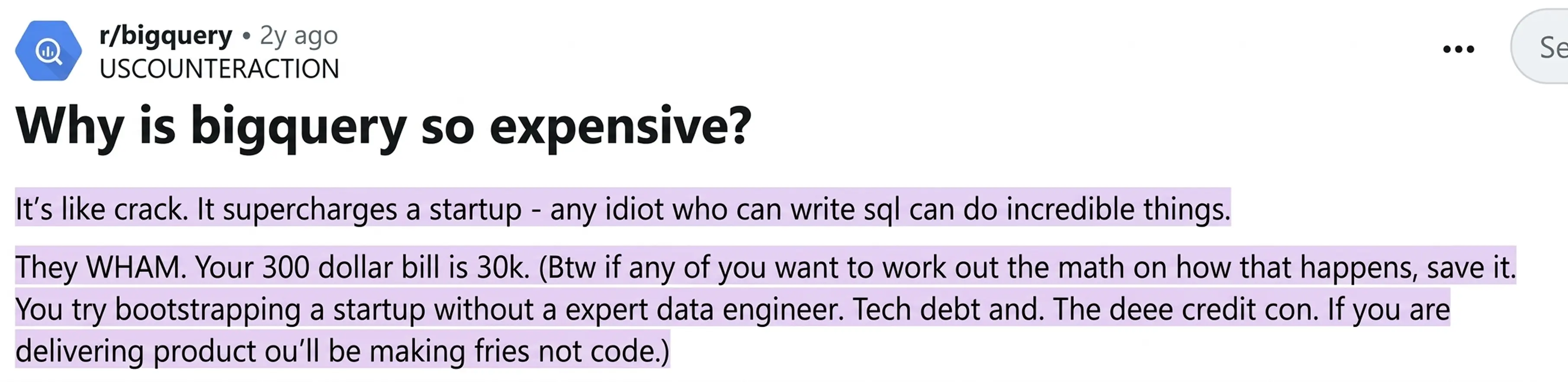
CFOs often experience sudden, massive bills. On Reddit, users frequently discuss the shock of a $300 bill jumping to $30,000 in one month.
They refer to BigQuery’s ease of use as the ‘crack’ effect
Any junior analyst with basic SQL knowledge can query petabytes of data in seconds. The system scales so effortlessly that the analyst never realizes how much computing power they just used.
A common and expensive mistake involves the LIMIT clause. Many analysts use SELECT* FROM table LIMIT 10 to preview a few rows of data. In a traditional database, the system stops after finding 10 rows.
In BigQuery, this does not happen. BigQuery will scan the entire unclustered table, process all the data, and apply LIMIT 10 only at the very end to format your screen output.
You pay for scanning the entire table. If the table is 500 Terabytes (TB), that single preview query just costs your company over $3,000.
If your costs are currently out of control, you need immediate action. Do not wait for engineers to rewrite all their code. Apply these three exact steps today to stop the financial bleeding.
A. Set Up Custom Daily Quotas (Hard Caps)
BigQuery allows you to set custom quotas at the project and user levels.
A project-level quota limits the total data processed per day across your whole company. A user-level quota limits how much a specific email address can process. If a user hits the limit, their queries simply fail until the next day.
B. Implement a Leaderboard of who spent what
You need to know who is spending the money. You can use Google Cloud Billing alerts to notify you when spending exceeds a certain amount.
Many companies create a simple dashboard showing which users ran the most expensive queries that week. This creates accountability. Once analysts see their names attached to a $500 query, they start optimizing their code.
C. Switch to Capacity Pricing
If you cannot control the volume of queries, you must change how you buy them. Move away from On-Demand pricing. Purchase Capacity pricing (reservations) instead.
This gives you a fixed amount of computing power for a fixed monthly price. Your queries might run slightly slower during peak times, but your bill will never exceed your budget.
You cannot fix what you cannot see. You must use BigQuery’s internal tracking tools to find exactly which queries are draining your budget.
Run this query in your BigQuery console to surface the ten most expensive queries executed today. Replace region-us with your project's region if different:
SELECT
job_id,
user_email,
ROUND(total_bytes_billed / POW(1024,4) * 6.25, 4) AS estimated_cost_usd,
ROUND(total_bytes_billed / POW(1024,4), 4) AS tib_billed,
LEFT(query, 200) AS query_preview
FROM region-us.INFORMATION_SCHEMA.JOBS
WHERE DATE(creation_time) >= DATE_SUB(CURRENT_DATE(), INTERVAL 7 DAY)
AND job_type = 'QUERY'
AND state = 'DONE'
ORDER BY total_bytes_billed DESC
LIMIT 10;
SOURCE: cloud.google.com/bigquery/docs/information-schema-jobs
Important Note: To execute this query successfully, you must first enable the BigQuery API in your Google Cloud project. You must also update the FROM clause to include your specific project ID and region (for example, your-project-id.region-eu.INFORMATION_SCHEMA.JOBS).
This view requires the BigQuery Resource Viewer or Job User role on the project. Running it does not cost additional money; INFORMATION_SCHEMA queries are free.
Every BigQuery query can be submitted as a dry run. A dry run validates the query syntax and returns the bytes that would be scanned, at zero cost. In the Google Cloud Console, enable the 'This is a dry run' toggle before executing. Via the API or bq CLI: add --dry_run to your bq query command.
Setting a maximum number of bytes billed parameter at the project or query level is the complement to dry runs. When a query exceeds the configured limit, it fails immediately rather than running, protecting you from runaway charges without requiring quota administration.
Materialized views pre-compute and store query results. When a query can be served from a materialized view, BigQuery charges only for the bytes in the materialized view, not the underlying source table.
For aggregation queries run repeatedly against large fact tables, materialized views can reduce query costs by an order of magnitude. They refresh automatically and incrementally, and they are available starting from the Enterprise Edition.
You must reduce the amount of data your queries scan. You achieve this through table design.
You should always use a WHERE clause early in your query ton filter data before performing expensive JOIN operations. Do not use SELECT *. Only select the exact columns you need.
You should use the Google Cloud Pricing Calculator before starting a new project. Let us look at a real-world mathematical example of how query design changes costs.
The Scenario:
You have a 500 GB table containing 50 columns. You are on the On-Demand pricing plan ($6.25 per TiB).
This is what a bad query looks like:
An analyst runs SELECT * FROM table to find three specific user IDs.
Here is the Optimized Query:
You train the analyst. They rewrite the query to SELECT CustomerID, OrderValue FROM table WHERE Date = '2026-03-01'. The table is partitioned by date.
By teaching one analyst to avoid SELECT * and use a partition filter, you save the company $927 a month.
Most of the guidance in this article requires someone technical to implement: writing SQL against INFORMATION_SCHEMA, interpreting slot utilisation graphs, and modelling commitment scenarios.
For a CFO running a growing analytics team, that dependency on internal technical staff or expensive external consultants is its own cost and risk.
That is exactly when you need a system that automatically governs your cloud spend.
Costimizer is an Agentic AI platform built to act as an automated FinOps engineer. It connects directly to your AWS, Azure, and GCP accounts.
Costimizer gives you a clear plan to regain control. Instead of giving you a complicated dashboard that requires manual analysis, Costimizer executes fixes for you.
At last, don’t let unchecked cloud infrastructure drain your competitive advantage. If you continue using manual tracking, you will overpay for resources that deliver zero business value.
No. Costimizer only requires read-only access to your cloud billing metadata and query execution logs. We never see, scan, or store your actual business data.
You will see actionable insights within 48 hours of connecting your GCP account. The AI immediately identifies quick wins, such as unused tables and unoptimized storage billing.
No. It provides unified, multi-cloud cost optimization across your entire AWS, Azure, and GCP environments, including virtual machines, storage, and Kubernetes clusters.
Yes. We use advanced Pool Resourcing and virtual tag governance to group your cloud spend, giving you exact unit economics per client, team, or data pipeline.
Absolutely. Our platform tracks the execution costs of scheduled jobs and flags exactly which automated pipeline is draining your budget so your engineers can fix it.
We offer a 14-day free trial with a Zero-Risk Guarantee. If the platform does not identify savings greater than your subscription cost, your first month is free.
•
CTO•
Articles